Processing Recordings
Simply turns your meeting recordings into structured summaries, data points, and searchable transcripts. Here's how the entire process works - from getting your audio into the platform to reviewing the results.
Getting your recording into Simply
Recordings can appear in your dashboard in several ways:
- Meeting bots - if you've connected your calendar, Simply can automatically join and record your meetings
- Desktop recorder - the Simply desktop app records calls and meetings on your computer
- Mobile recorder - the Simply mobile app lets you record in-person meetings
- Manual upload - click the Upload recording button in the top right of your Recordings dashboard
Starting the analysis
Once a recording appears in your dashboard, it will show as unprocessed (grey status dot). Click Start analyzing to begin.
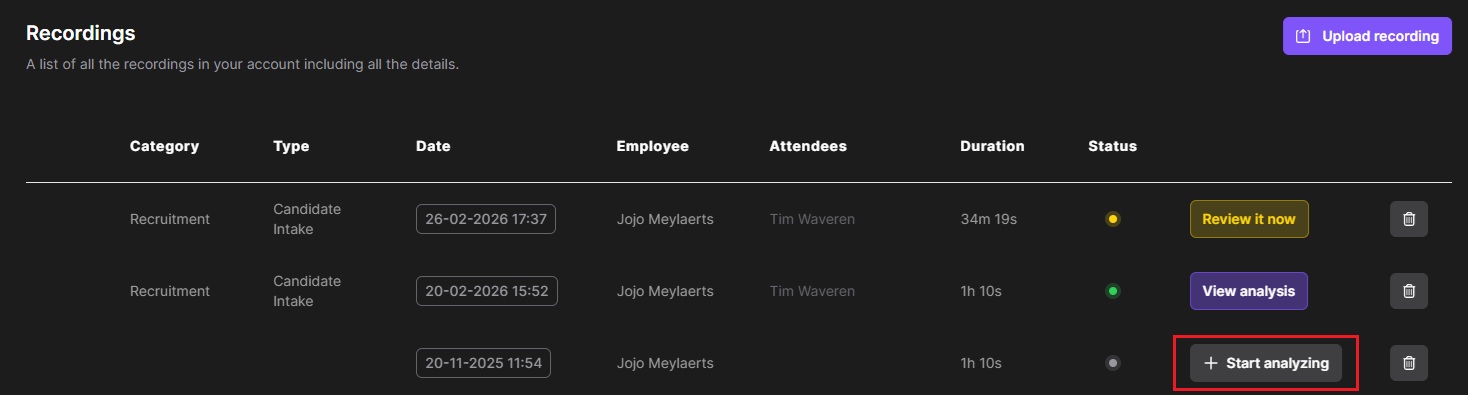
This opens the Conversation details pop-up, where you configure how Simply should process the recording.
Select a conversation profile
The conversation profile defines the output template - it determines the structure of your summary and which data points are extracted.
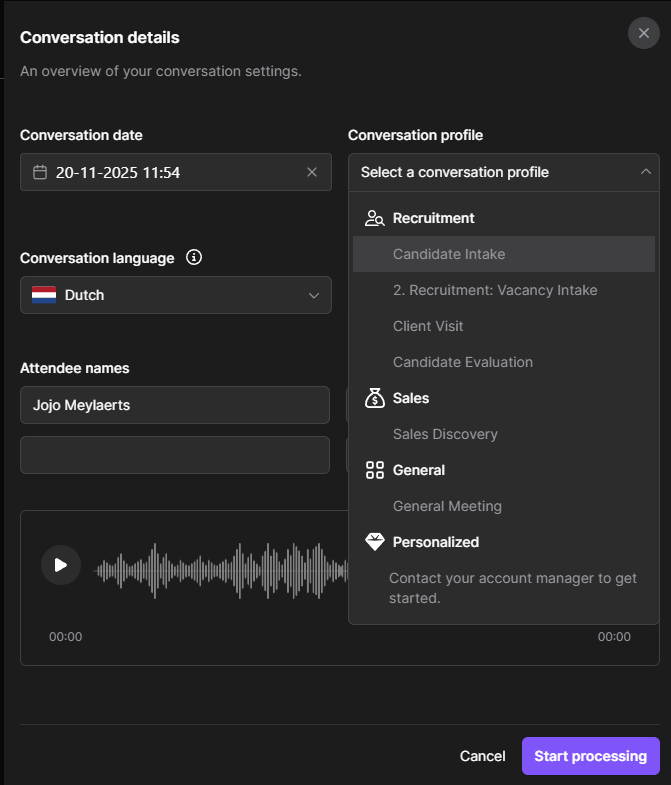
Every new user starts with a general library of templates that have been refined for common recruitment scenarios:
- Recruitment - Candidate Intake, Vacancy Intake, Client Visit, Candidate Evaluation
- Sales - Sales Discovery
- General - General Meeting
- Personalized - custom profiles built together with your Simply account manager
The default templates are a great starting point, but conversation profiles are meant to be fully customizable. We can adjust the summary structure, the data points captured, and more - all tailored to your specific workflow. Reach out to us anytime to fine-tune them.
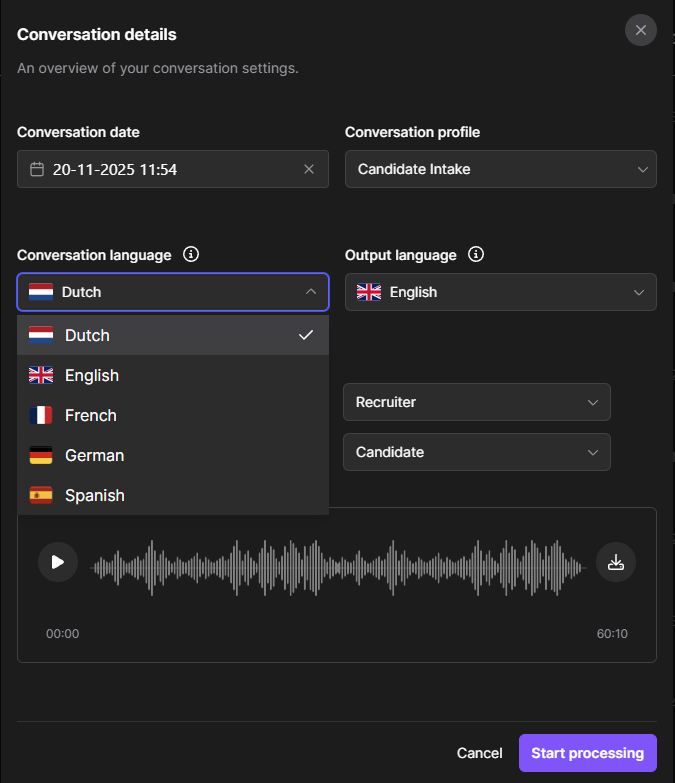
Set the languages
Choose the conversation language (the language spoken in the recording) and the output language (the language you want the summary in). Simply supports translation, so you can have a conversation in Dutch and get the output in English - or any other combination.
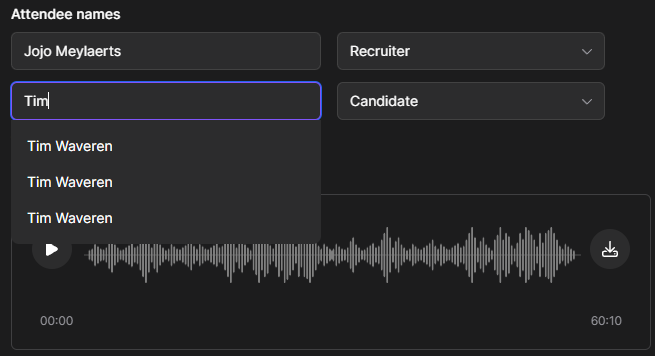
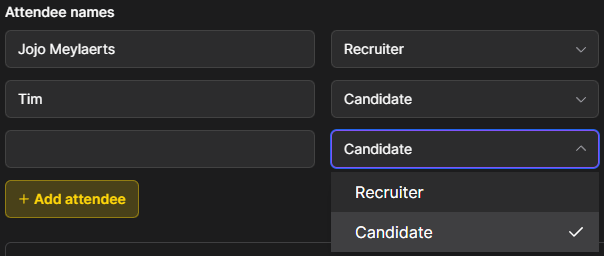
Add attendees and roles
Enter the names of the conversation participants and assign their roles (e.g. Recruiter, Candidate). This is an important step - it helps Simply identify which information is relevant and who said what.
Simply will suggest names from your contacts as you type. You can add as many attendees as needed using the + Add attendee button.
Listen back or download
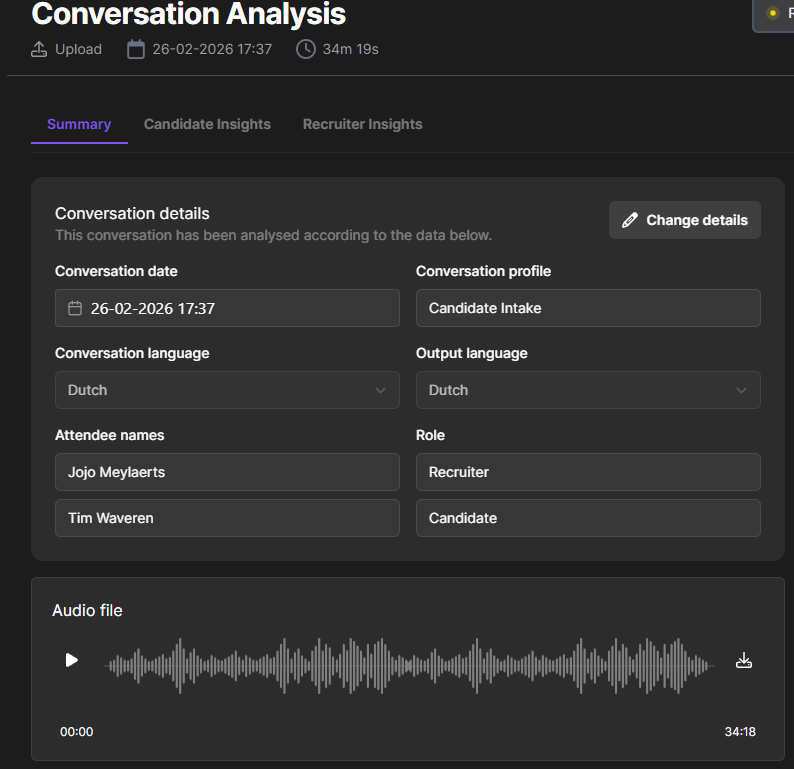
Before processing, you can use the built-in audio player to re-listen to the recording, or download it using the download button.

Start processing
Once everything is configured, click Start processing. The recording will process for a few minutes - you can navigate away and come back later.
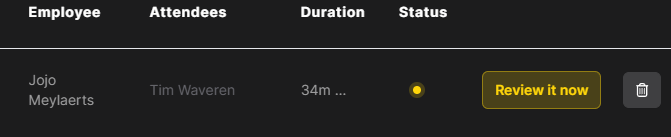
When processing is complete, the status in your dashboard will change to a yellow dot with a Review it now button.
Reviewing the analysis
Click Review it now (or View analysis for completed recordings) to open the analysis page.
Conversation details
At the top, you'll see the conversation details you entered - the date, profile, languages, and attendees. If you made a mistake, click Change details in the top right to update the settings and reprocess the recording.
Summary
The main section of the analysis page is the summary - a comprehensive, structured breakdown of the conversation generated by Simply.
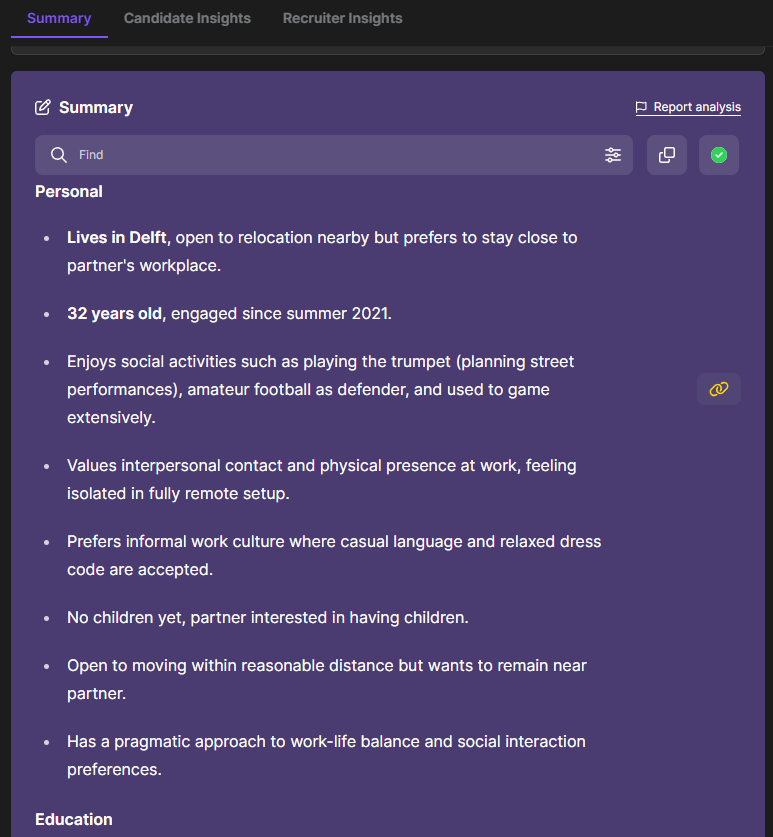
The summary is organized into sections (e.g. Personal, Education, Experience) based on your conversation profile. Key things to know:
- The summary is fully editable - click into it to make changes
- Use the search bar to find specific terms, with find-and-replace functionality
- Use the copy button to copy the entire summary
Linking - verify the source
Every sentence in the summary has a yellow link icon (🔗). Click it to open the Linking panel on the right side, which shows you the exact transcript quotes that Simply used to generate that summary point.
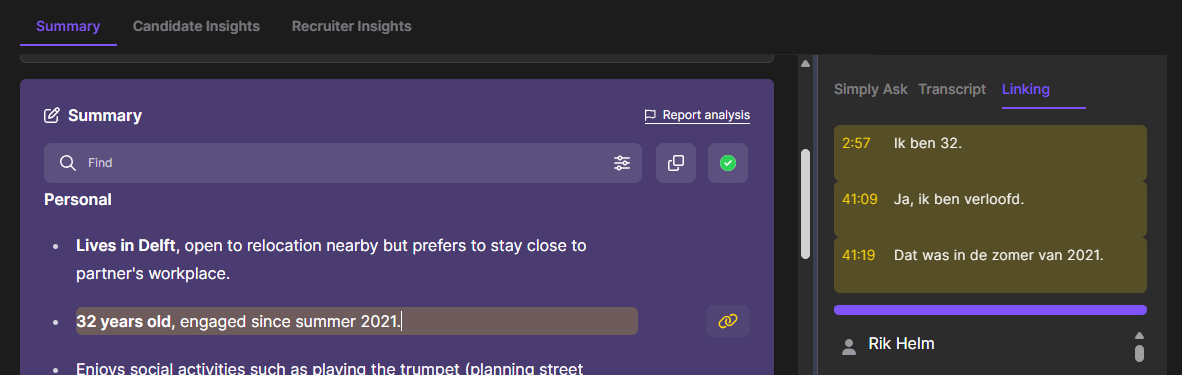
This is invaluable for data validation - you can quickly verify that the summary accurately reflects what was said in the conversation.
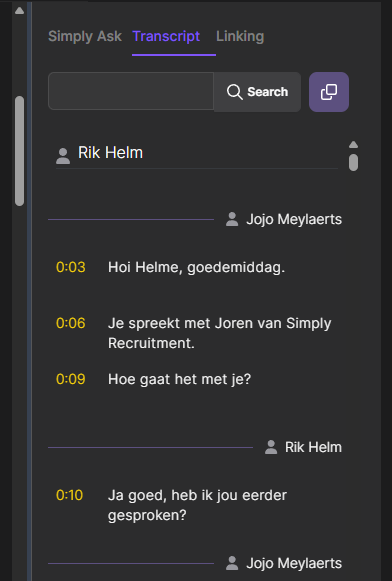
Transcript
The Transcript tab on the right panel shows the full conversation transcript with speaker detection and timestamps. You can scroll through the entire dialogue, search for specific text, or copy the full transcript.
Data points
Below the summary, you'll find the extracted data points - structured fields like names, availability, salary expectations, and more.
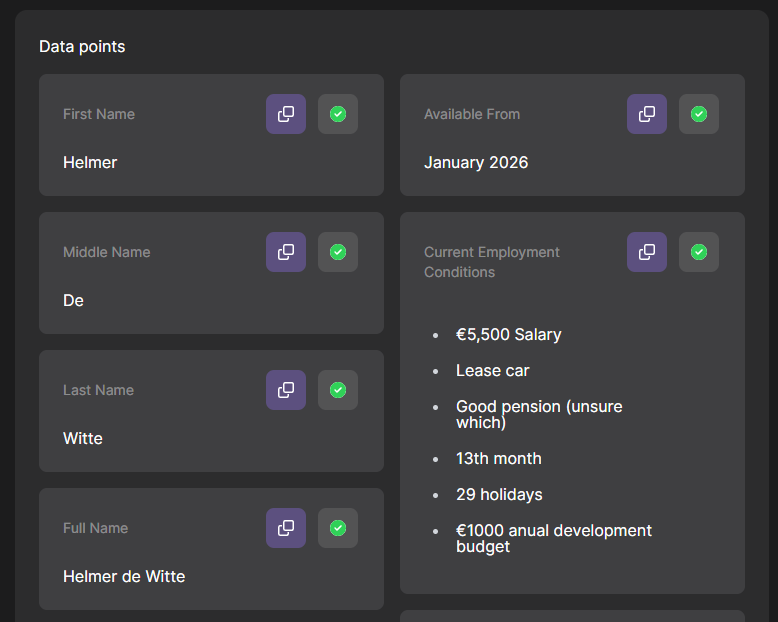
These data points are designed to be mapped to your CRM or ATS fields. When connected, they sync automatically so your systems stay up to date after every conversation.
Each data point can be:
- Edited if something needs correcting
- Copied using the copy button
- Confirmed using the green checkmark
The data points extracted depend on your conversation profile. If you need different or additional fields, we can customize the profile to capture exactly what matters to your workflow.
Simply Ask
Simply Ask is an AI assistant that has full context of the transcript and summary. Open it from the right panel to ask questions or generate content.
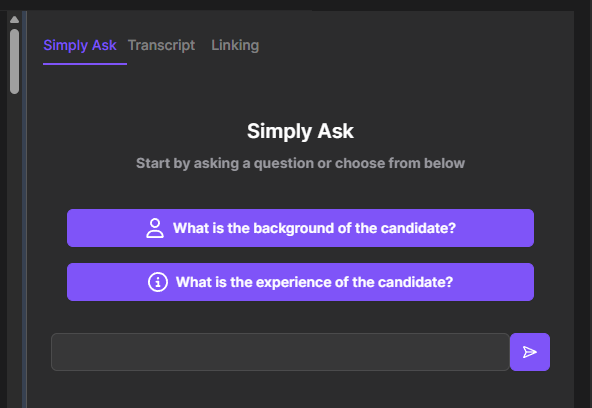
You can start with one of the suggested questions, or type your own. For example, you can ask Simply to:
- Dive deeper into a specific topic from the conversation
- Write an introduction email about the candidate
- Summarize the candidate's key strengths
- Compare stated preferences with job requirements
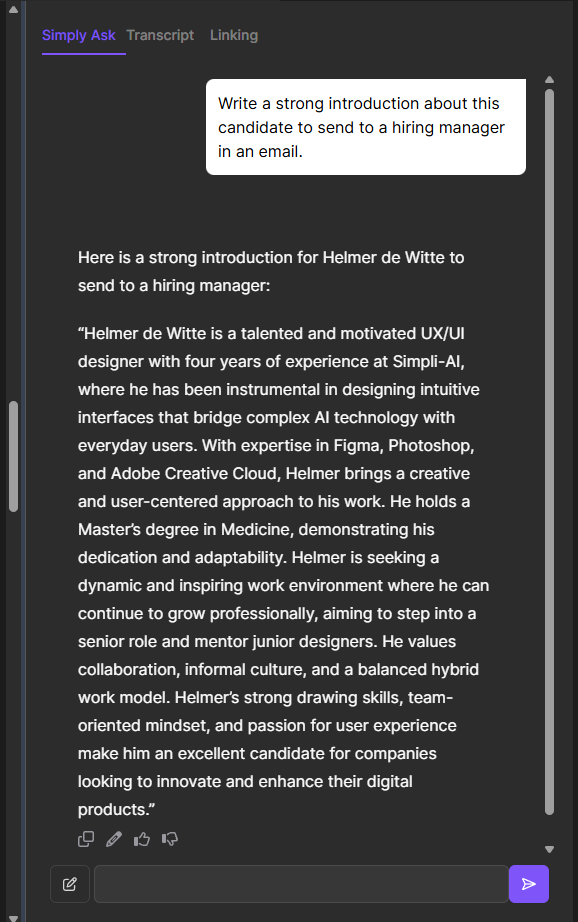
Simply Ask responses can be copied, edited, or rated with thumbs up/down to help improve future results.
Every conversation profile will produce different results depending on its template. If the output isn't quite right for your needs, don't hesitate to reach out - we'll work with you to fine-tune everything to your taste.