CV Conversion
The CV Converter takes a candidate's input CV and converts it into your recruitment company's house style, exporting it as a Word document. This lets you send professionally branded CVs to clients without any manual formatting.
Starting a Conversion
Like the other Simply tools, the CV Converter can be triggered from two places:
- From the homepage widget: useful for quick access, but you'll need to select the contact manually.
- From the contact page widget: the contact is already set, so you can get started right away.
Once the widget is open, you have two options for providing the input CV.
Option 1: Upload a New File
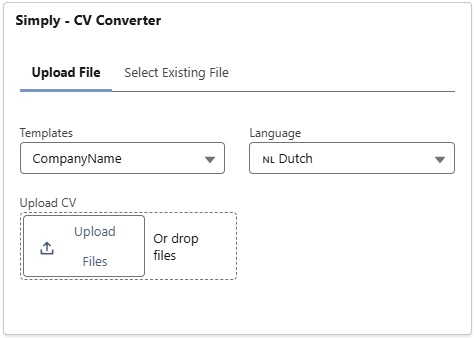
On the Upload File tab, select your Template and Output Language, then upload the CV by clicking Upload Files or dragging and dropping the file.
Option 2: Use an Existing File
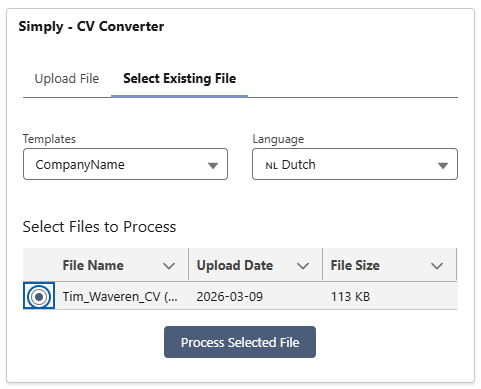
If you've already parsed this candidate's CV using the Simply CV Parser, a copy of the original CV is stored under the contact's Notes & Attachments. Instead of uploading it again, switch to the Select Existing File tab.
This will pull up all files saved under the contact's Notes & Attachments. Select the input CV and click Process Selected File.
Processing and Downloading
After starting the conversion, you'll be navigated to the CV Converter tab where you can track the status.
While the conversion is running, the status will show as Pending and the download button will be greyed out.

Once the conversion is complete, the status will update and the Download button will become active.

Click the Download button. You'll see a success notification confirming the download has been initiated.

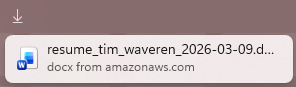
The converted CV will be downloaded directly to your computer as a Word document, ready to open in Microsoft Word or any compatible editor.
After Conversion
Simply will also store a copy of the converted CV under the contact's Notes & Attachments, alongside the original input CV. This way both versions are always available on the candidate's record.

Congratulations, you've successfully converted your first CV! 🎉